You can automatically send the call process towards a closed and/or holiday message. To do this, you only need to adjust the calendar in your calling process. Follow the steps below to add a date to the calendar.
Log in to the MyTelsMart portal.
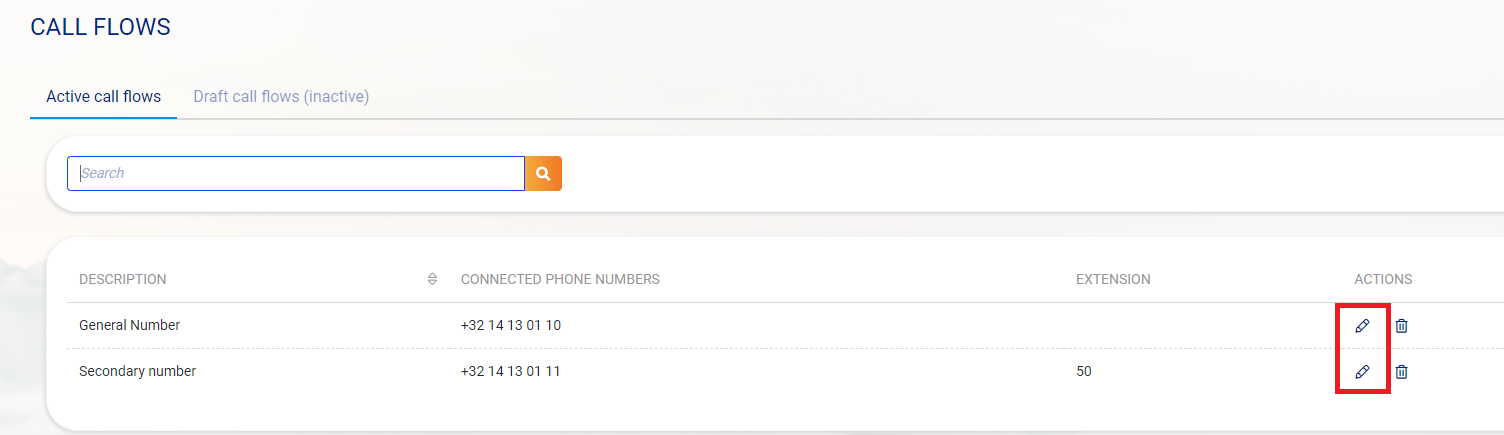
Step 1: Once logged in to the portal, choose Callflow/Belproces in the left column.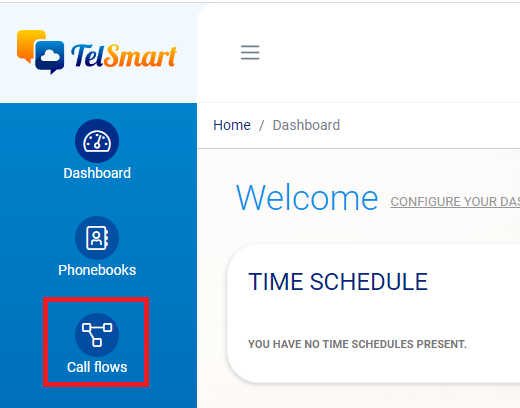 Step 2: Open the calling process you want to adjust by clicking on the pencil.
  Step 3: Find the box labeled Holiday or Holiday calendar & Click on the pencil icon.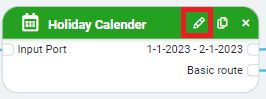
Step 4: Click the plus sign to add a date. 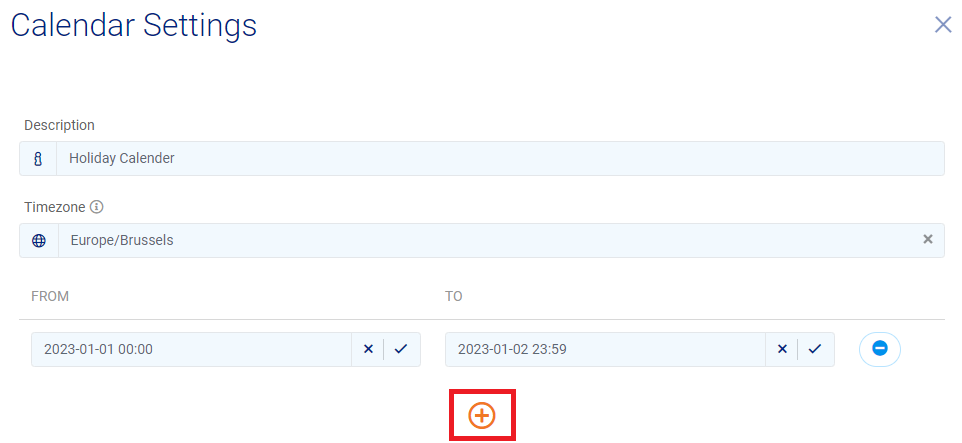 Step 5: Click on the 1st box to make the calendar visible from which you can choose.
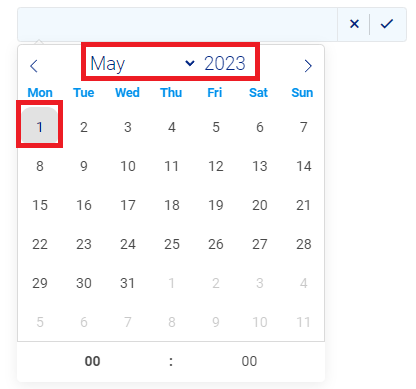
 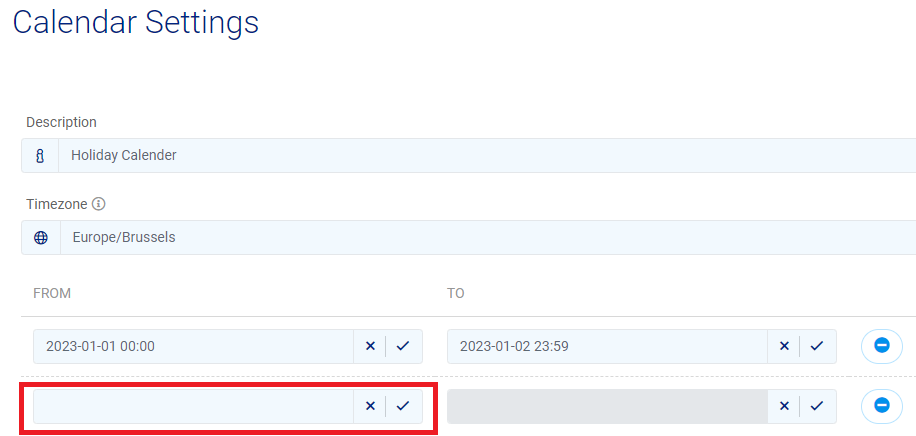 Step 6: Click the correct Start date on the calendar. We use 01/05/2023 as an example.
Step 7: Choose the correct End date on the calendar, usually this is the same as the start date unless a number of consecutive days are taken as a bridge day. Make sure you also change the time entry to 11:59 PM. So that the process can proceed normally the next day. 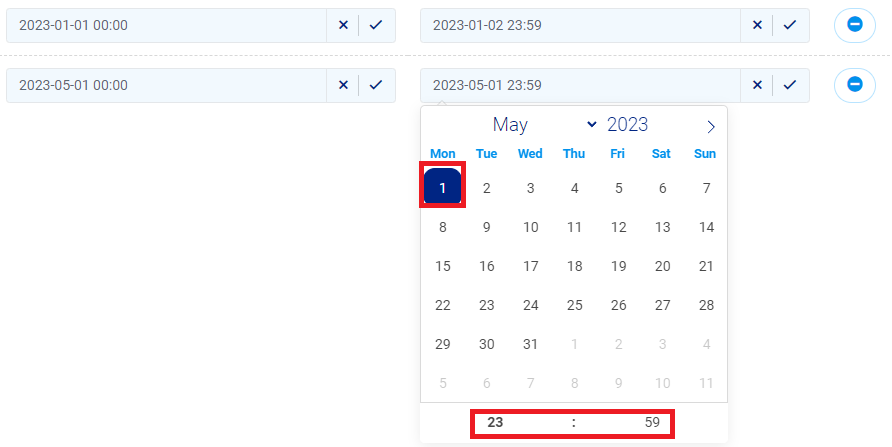
Step 8: Press Ok to add the date.

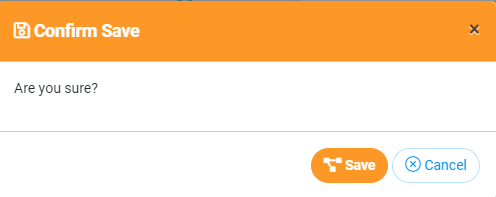
Step 9: Now connect the line of the newly added date with the message you wish to be played during holidays. 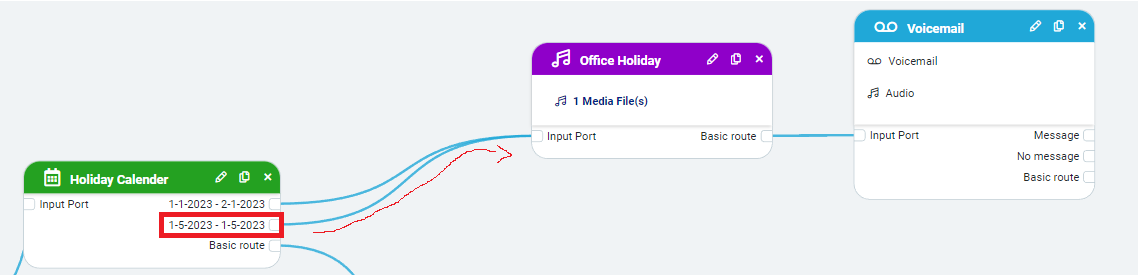 Step 10: Save the changes to start adding the calendar.

Click Save again to save.