With the following guide you will learn how to record an audio message in your MyTelSmart portal and use this audio file in a callflow with a new smart button.
Record an audio file
Follow the steps below to record a new audio message in the MyTelSmart portal
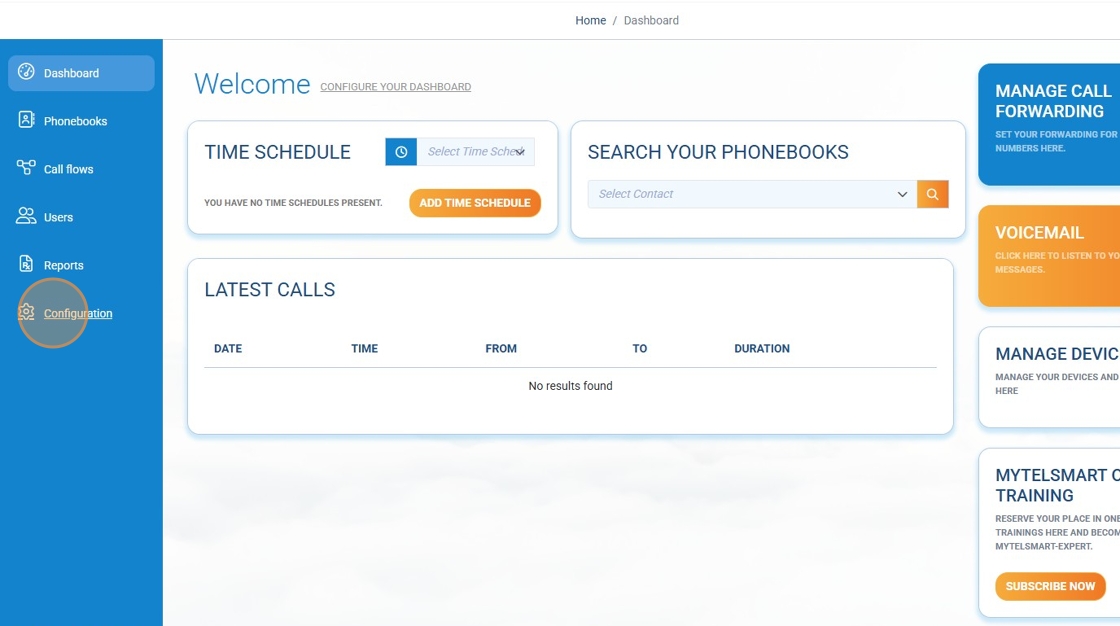
Step 1: Log in to the portal (https://portal.telsmart.eu) and choose Configuration in the left-side menu.
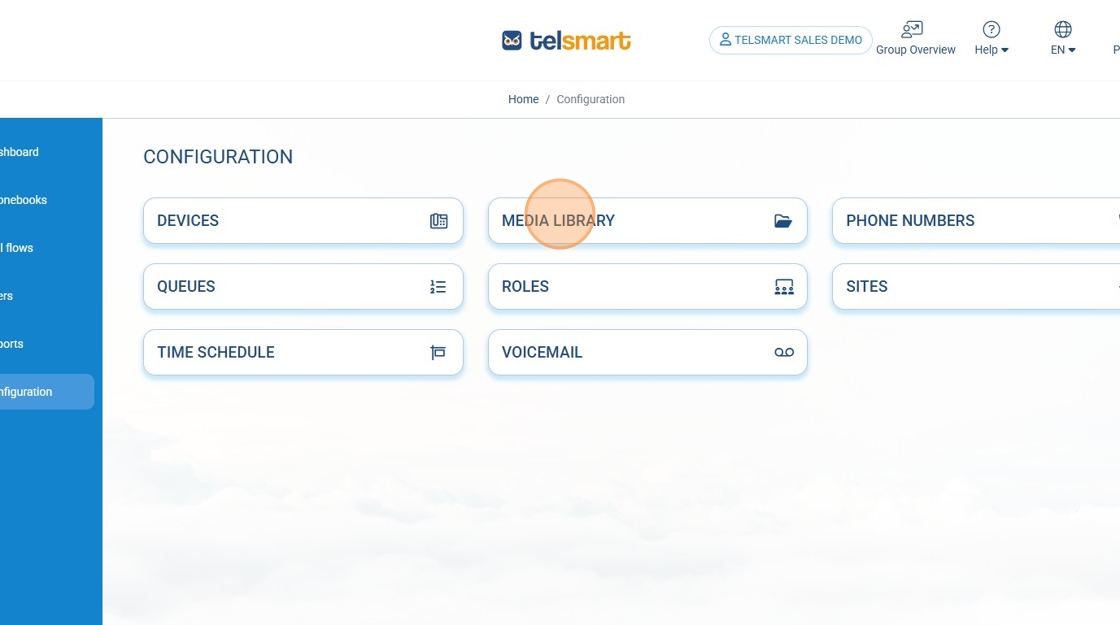
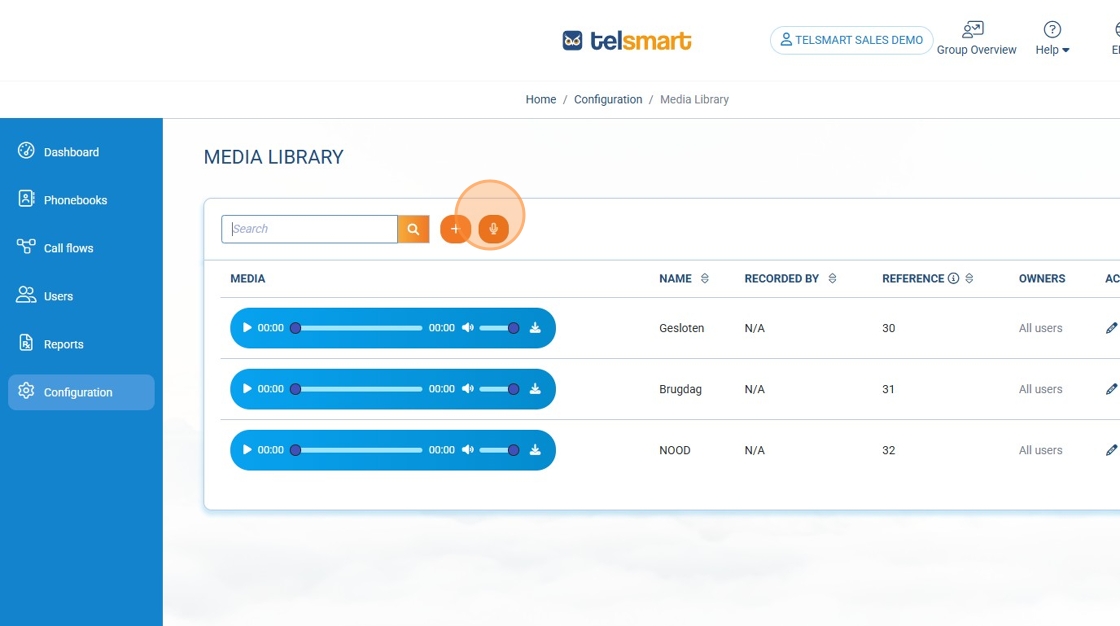
Step 2: Click "Media Library"
Step 3: Click this button. (a little microphone)
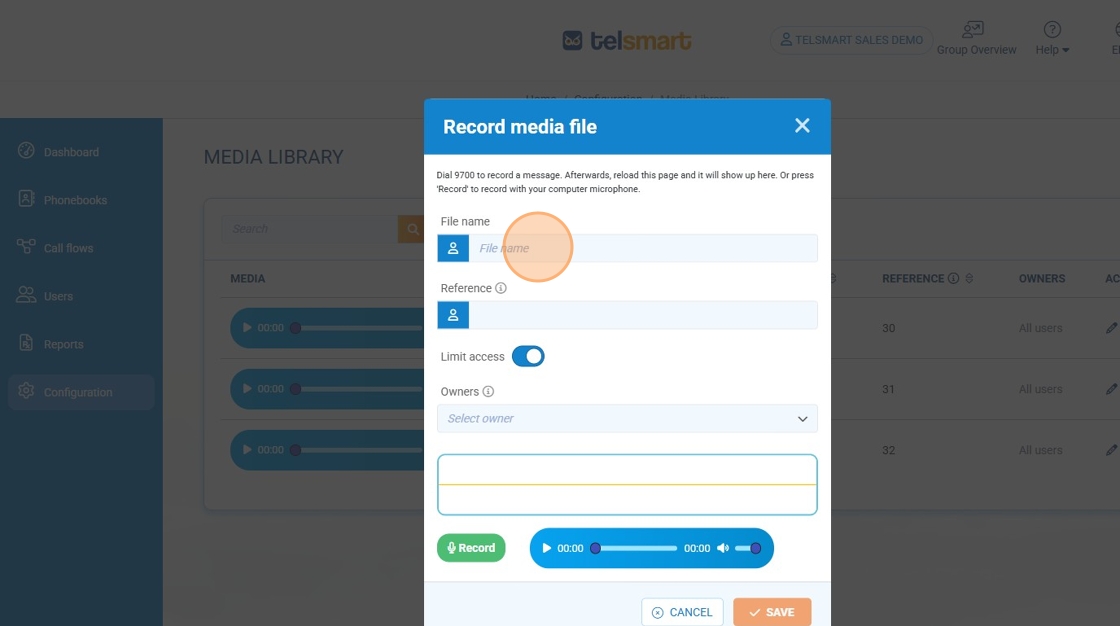
Step4: Enter a file name for your audio file
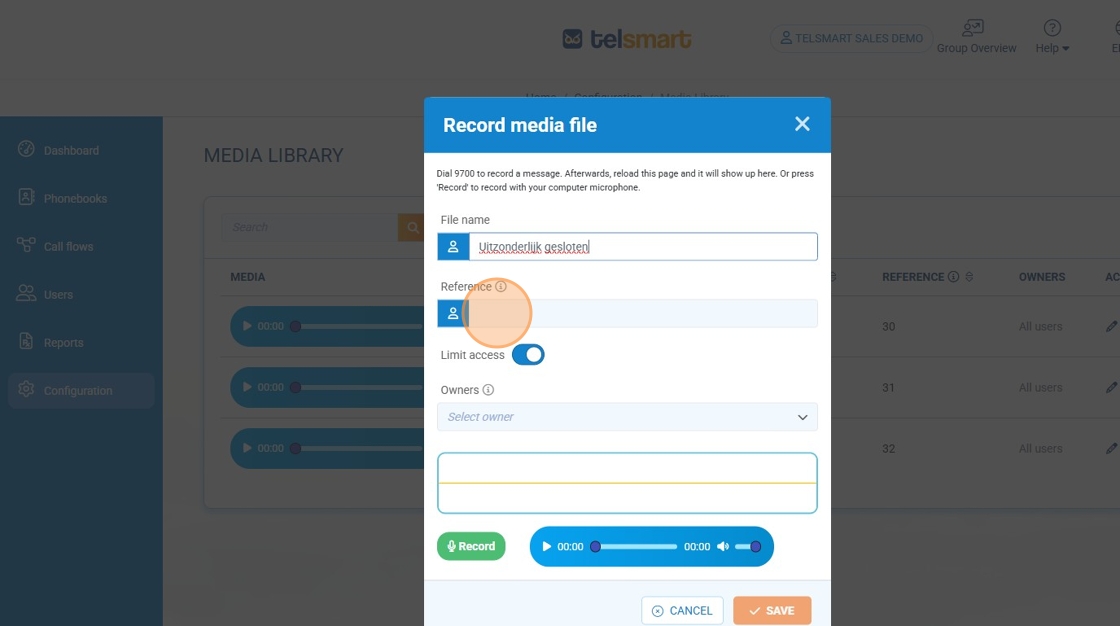
Step 5: Type a reference number (this needs to be unique) which will prove usefull in case you need to adjust the message later.
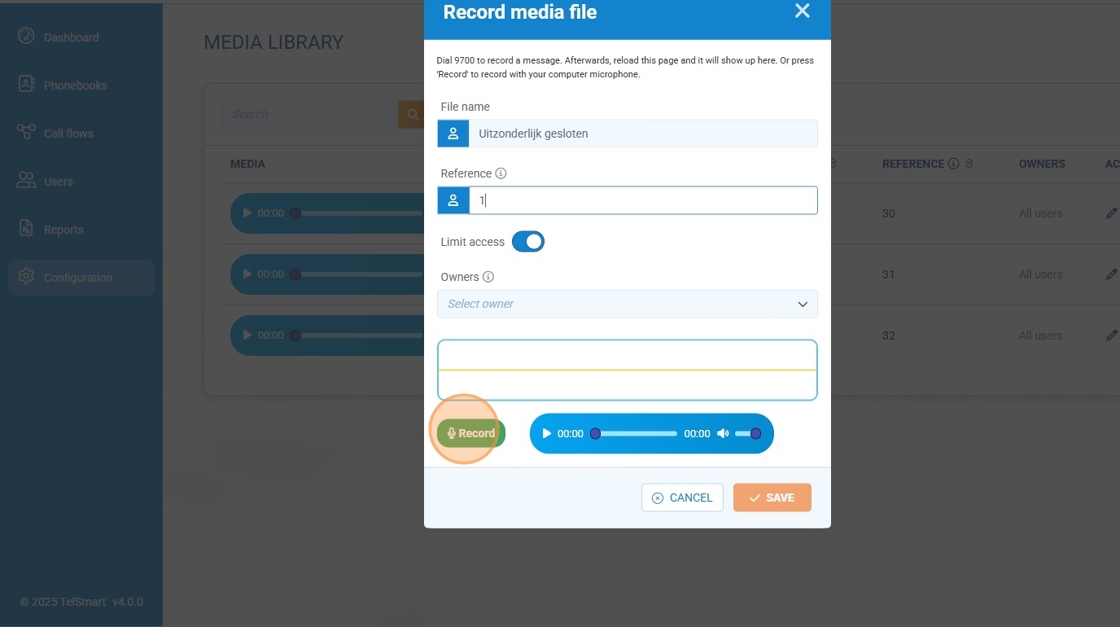
Step 6: Click "Record", press "Stop" when you are done recording
Step 7: Click "Save" and now the audio file is added to your portal
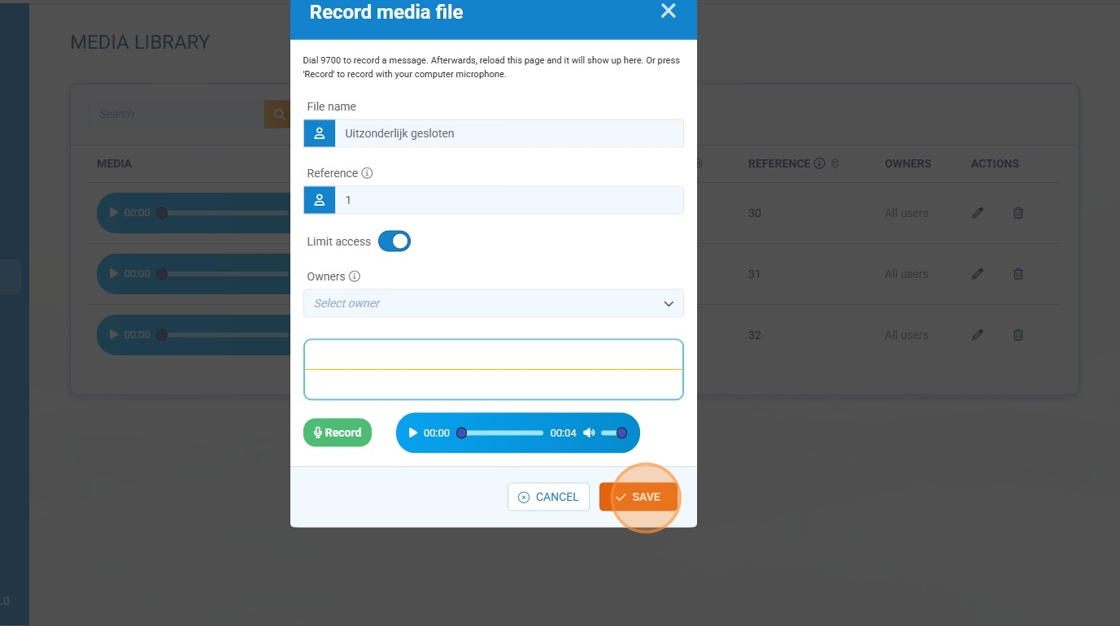
BONUS Step 8: If, at a later time, you wish to adjust the audio file you can dial 9700#1 (the 1 is the reference we added above)
Add a smart button with audio message to your callflow
Step 1: Again we go to the portal and now we choose "Call flows" in the left-side menu
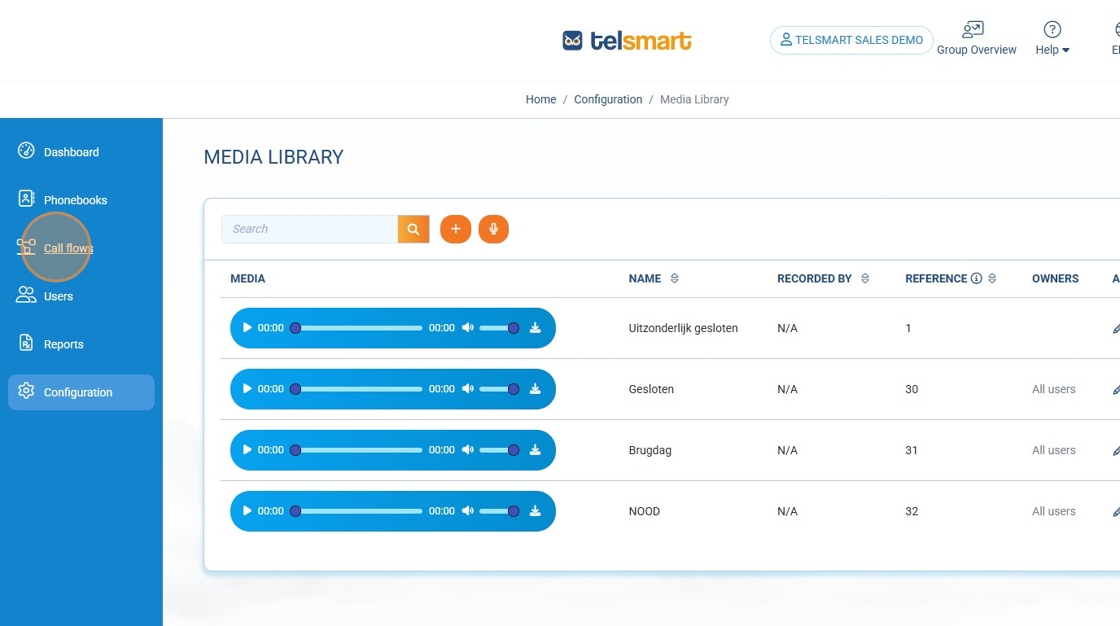
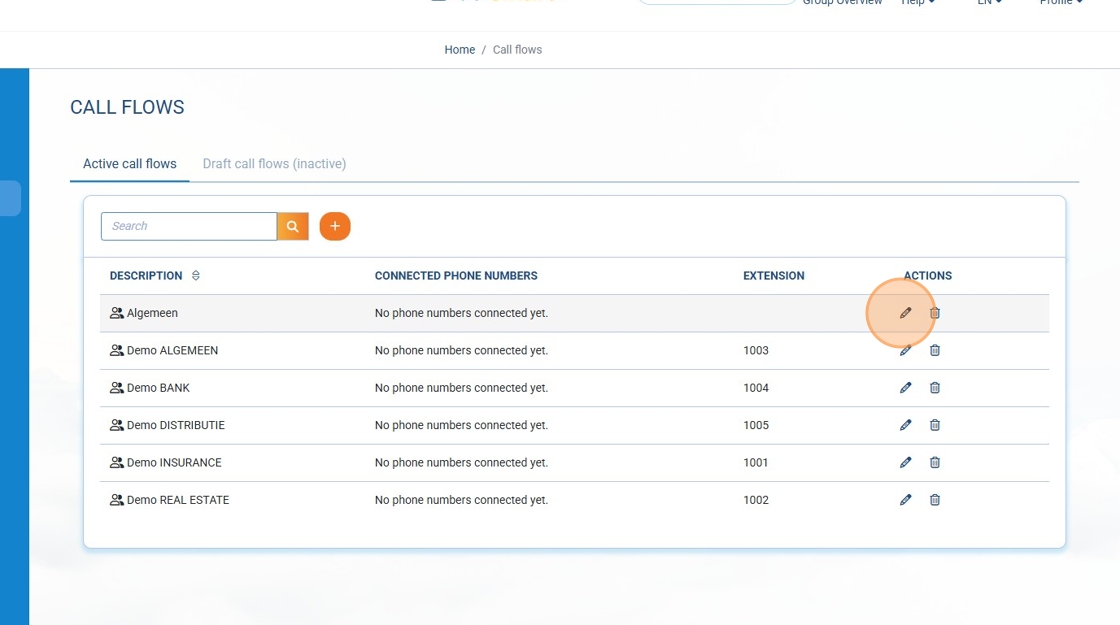
Step 2: We click on the little pencil net to the callflow we want to adjust
Step 3: We click on the little pencil for the choice block we want to change
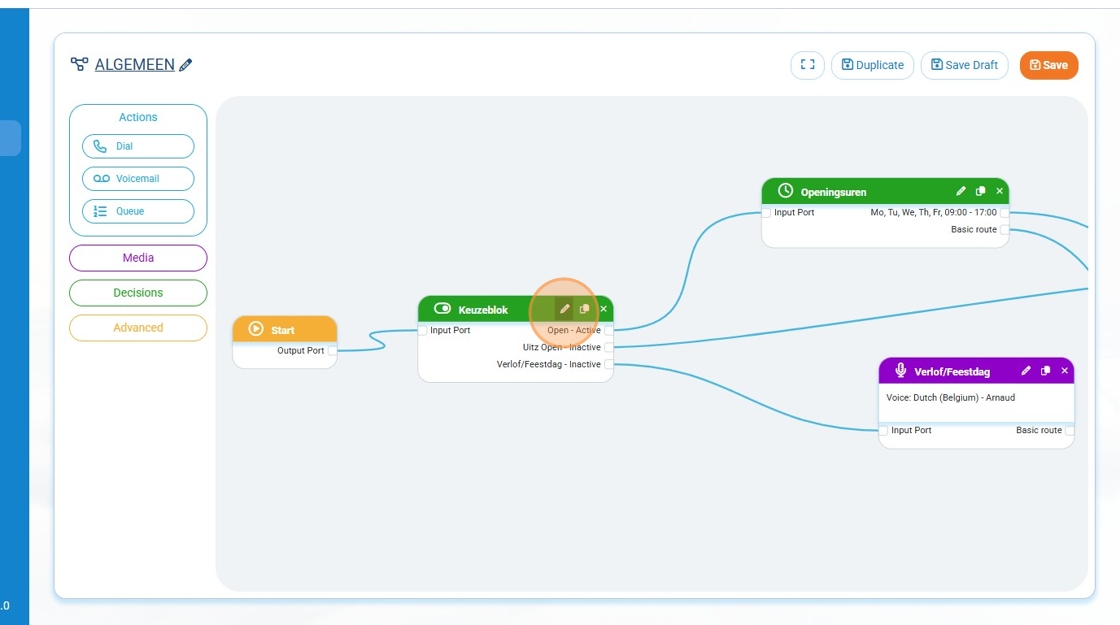
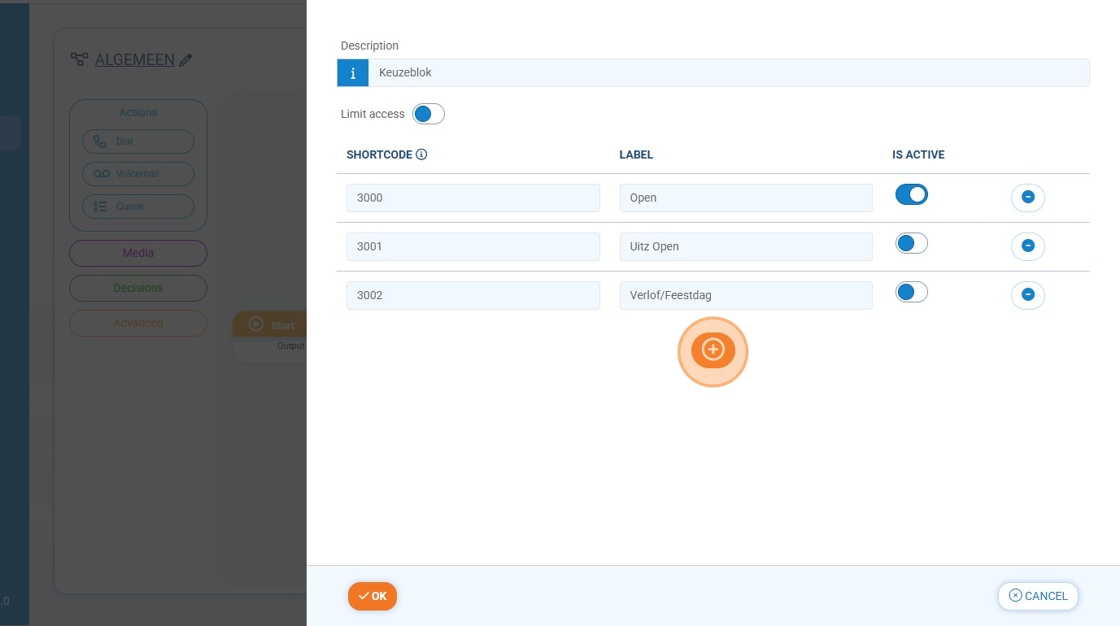
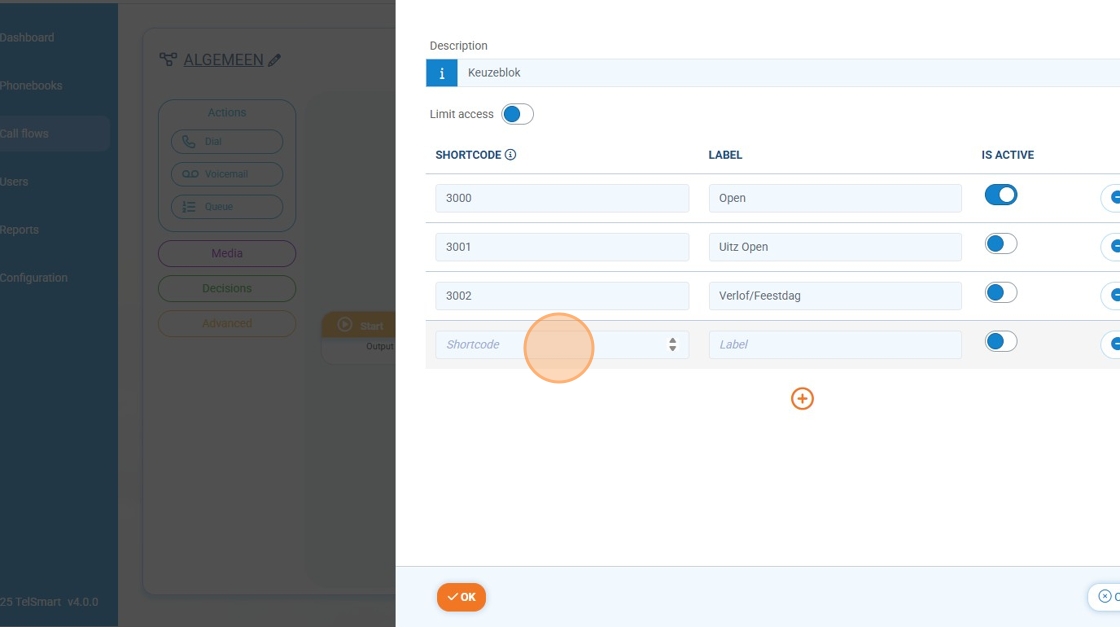
Step 4: We add the option we need (the number must be unique)
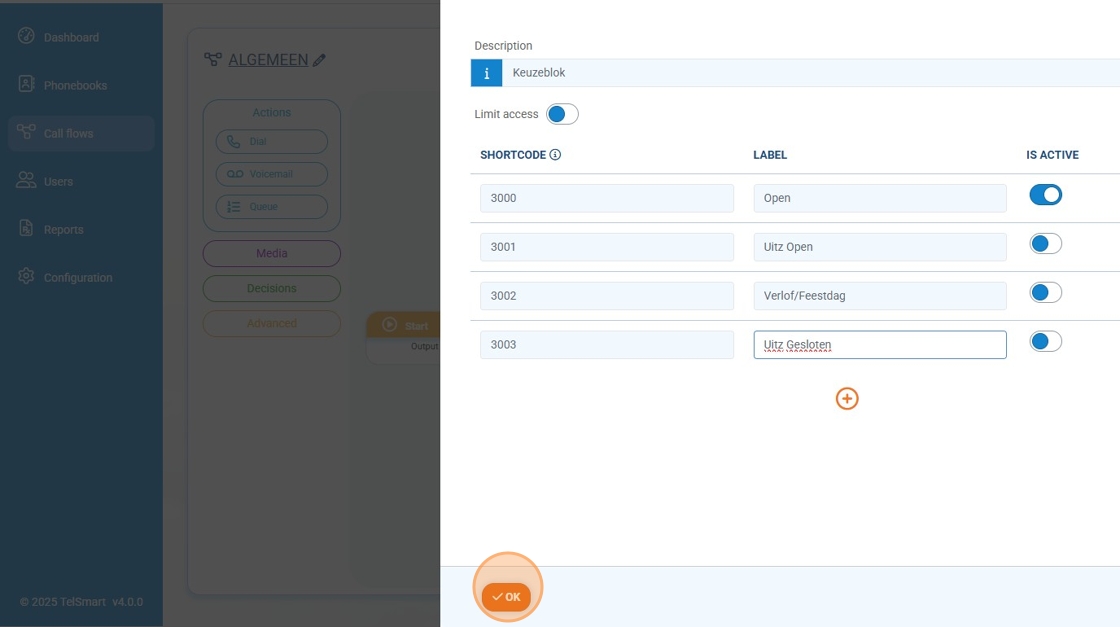
Step 5: We click "OK" (this will take us back to the callflow)
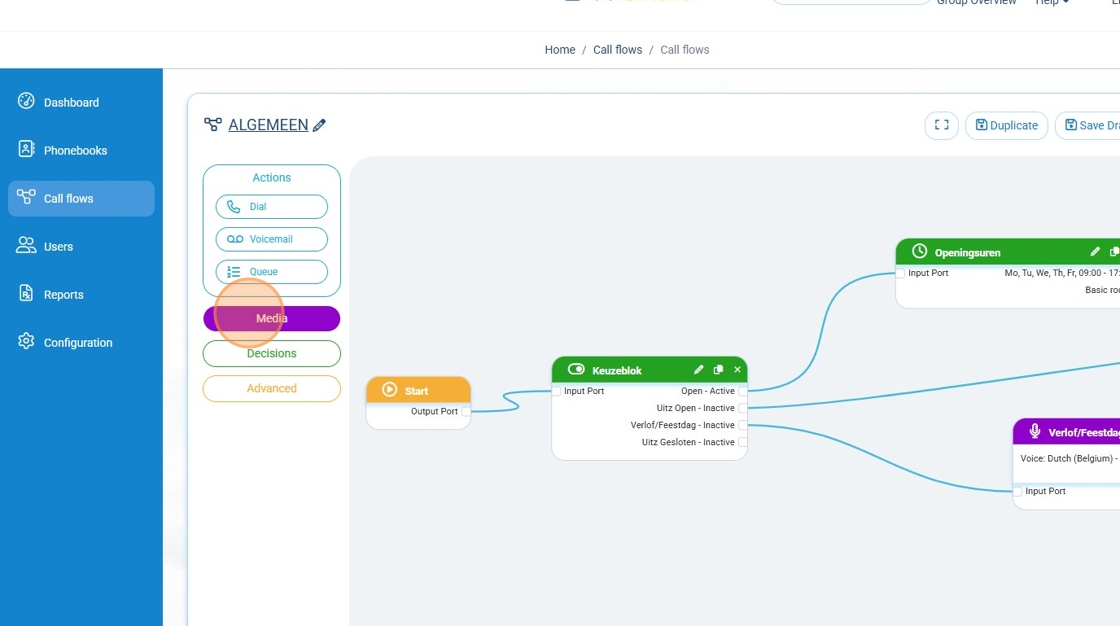
Step 6: In the left-side menu we click "Media" and then we drag the "Use Audio Message" to the callflow
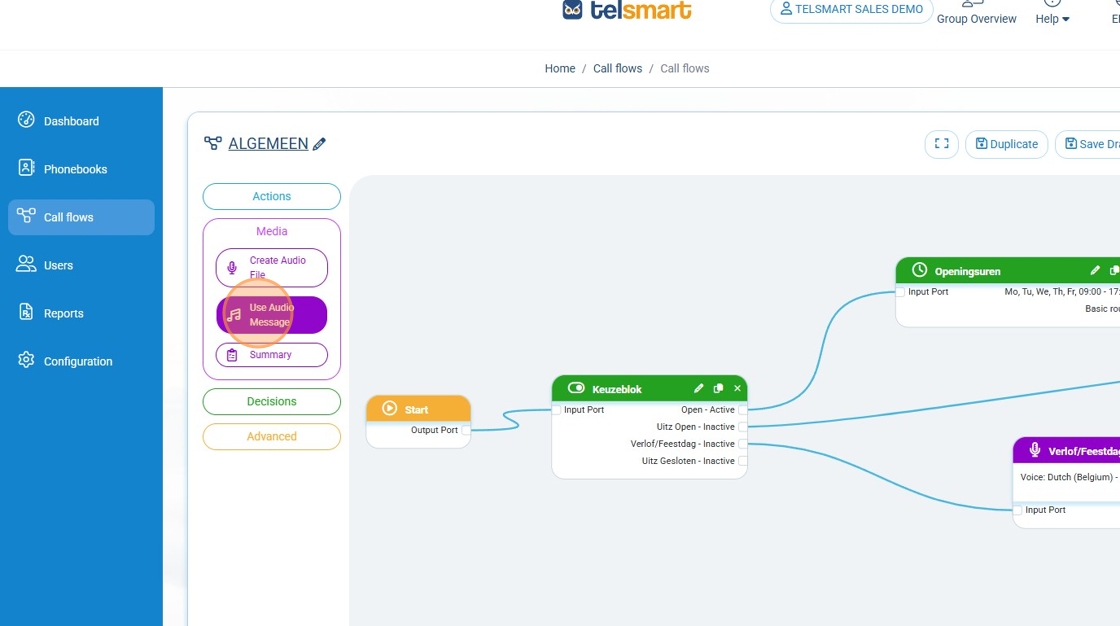
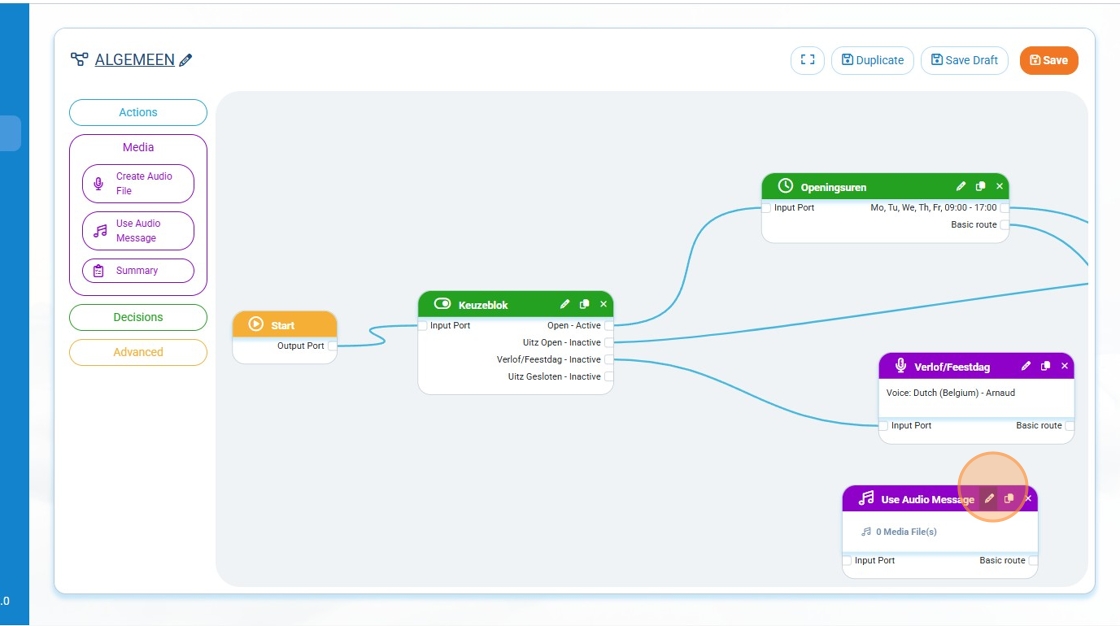
Step 7: On the new purple box we click the little pencil to adjust it
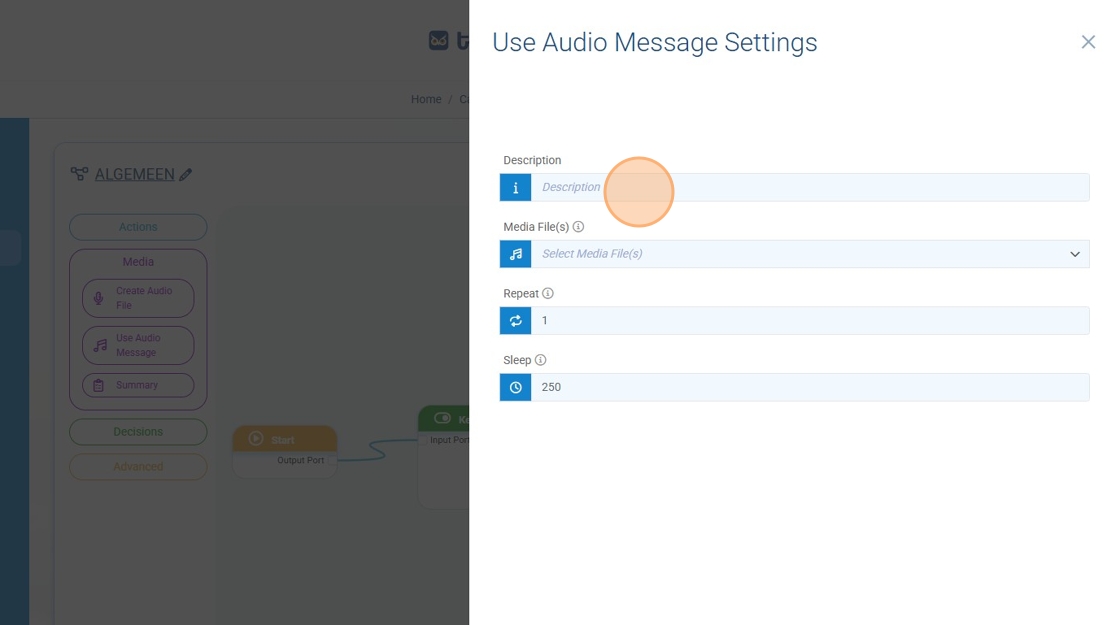
Step 8: Add a description
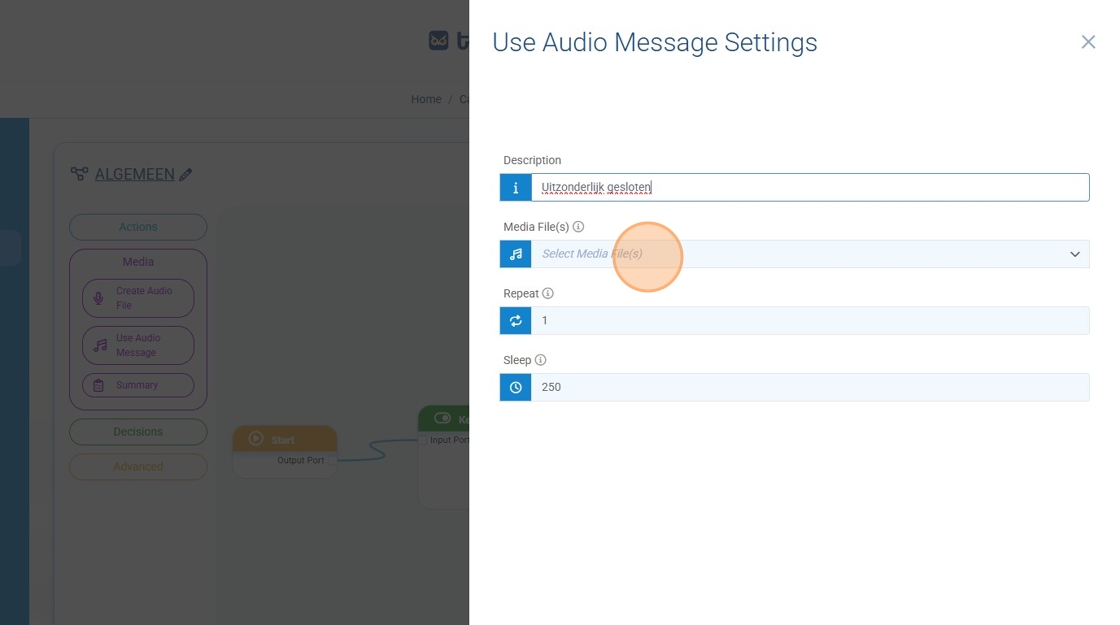
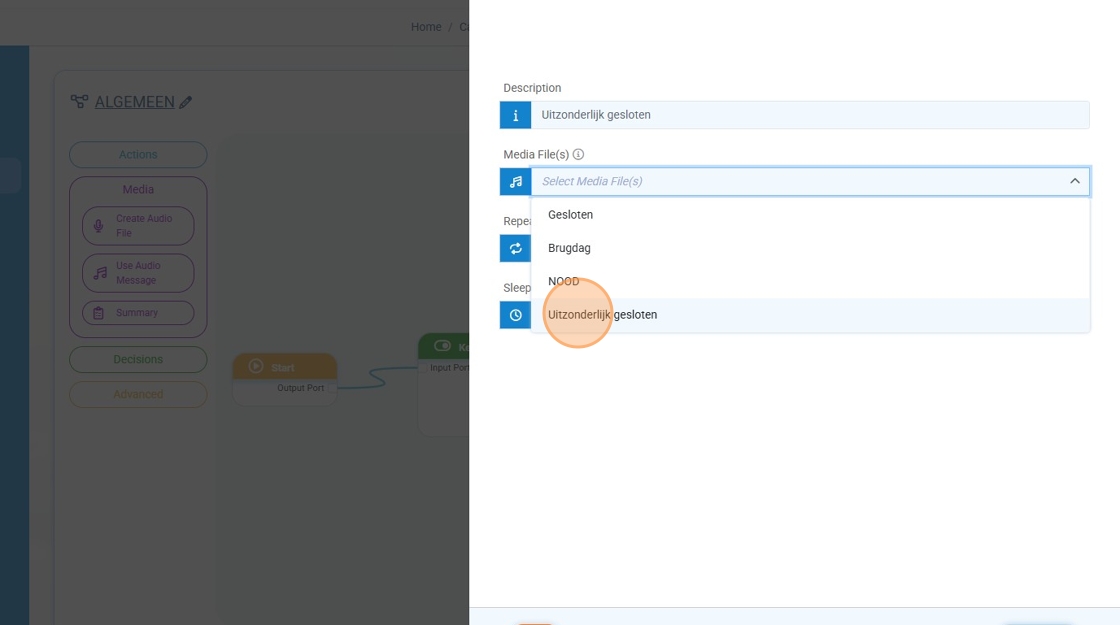
Step 9: Click the "Select Media File(s)" field and then select the audio file we recorded earleir
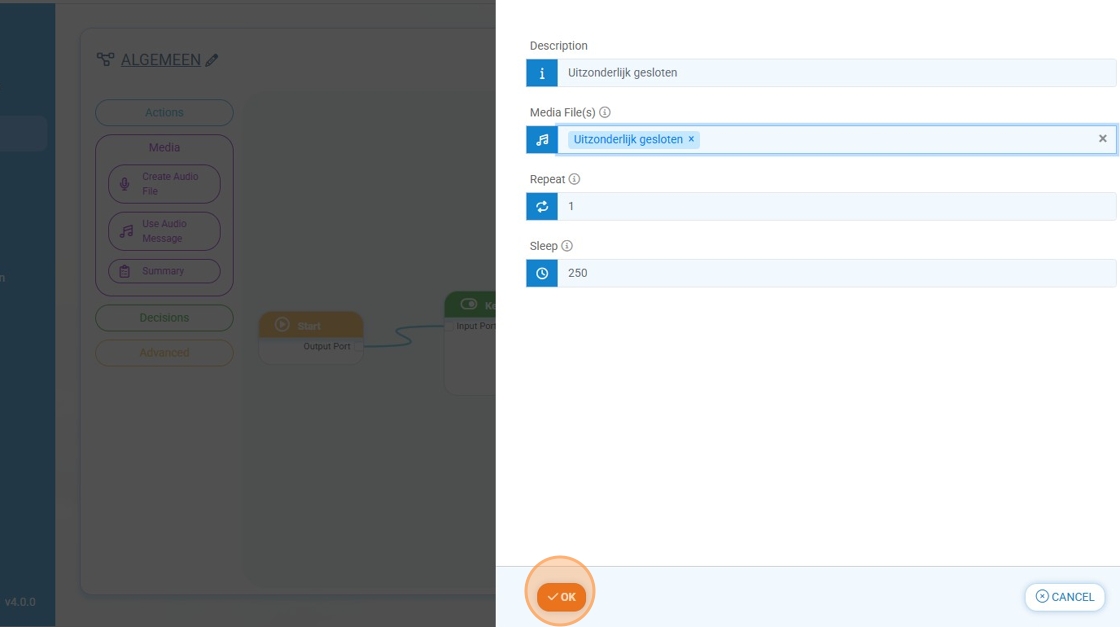
Step 10: Click "OK"
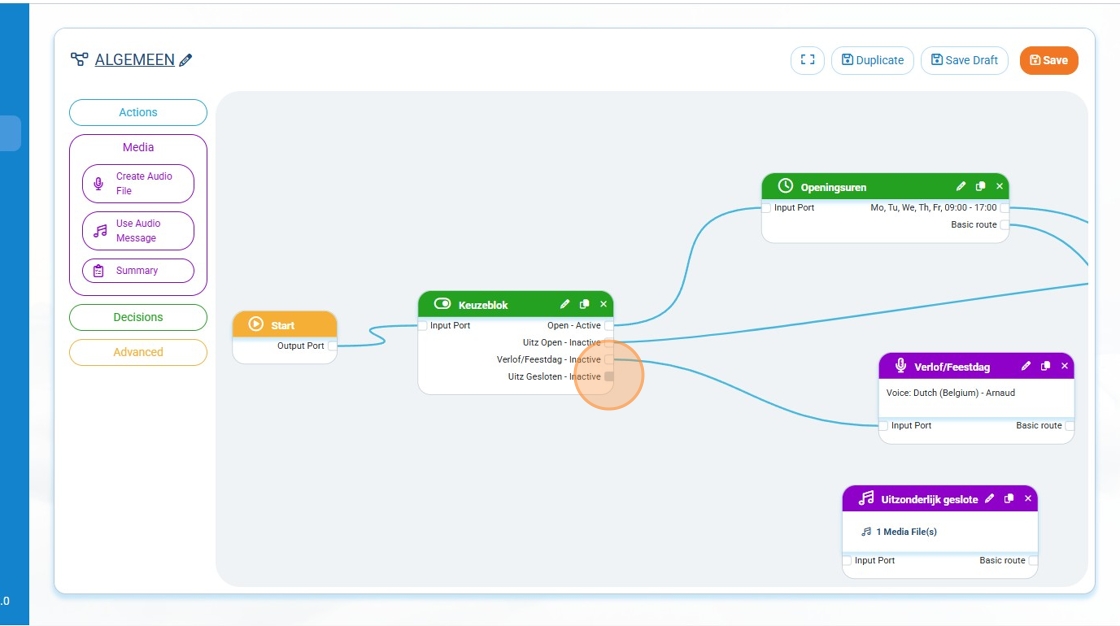
Step 11: Drag a line from the newly created choice option to the purple box
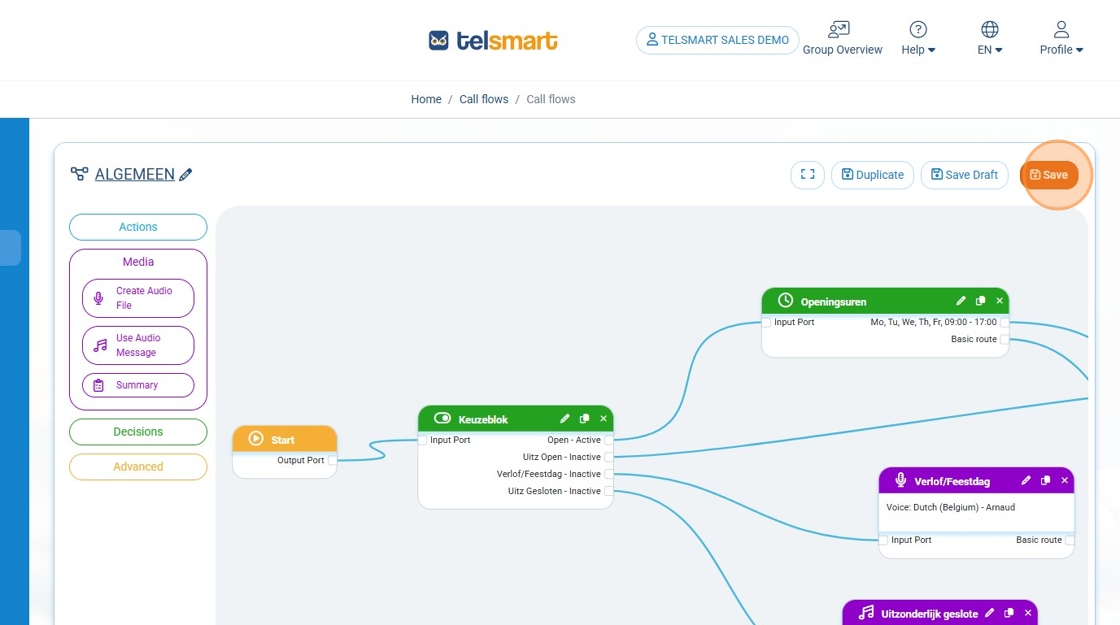
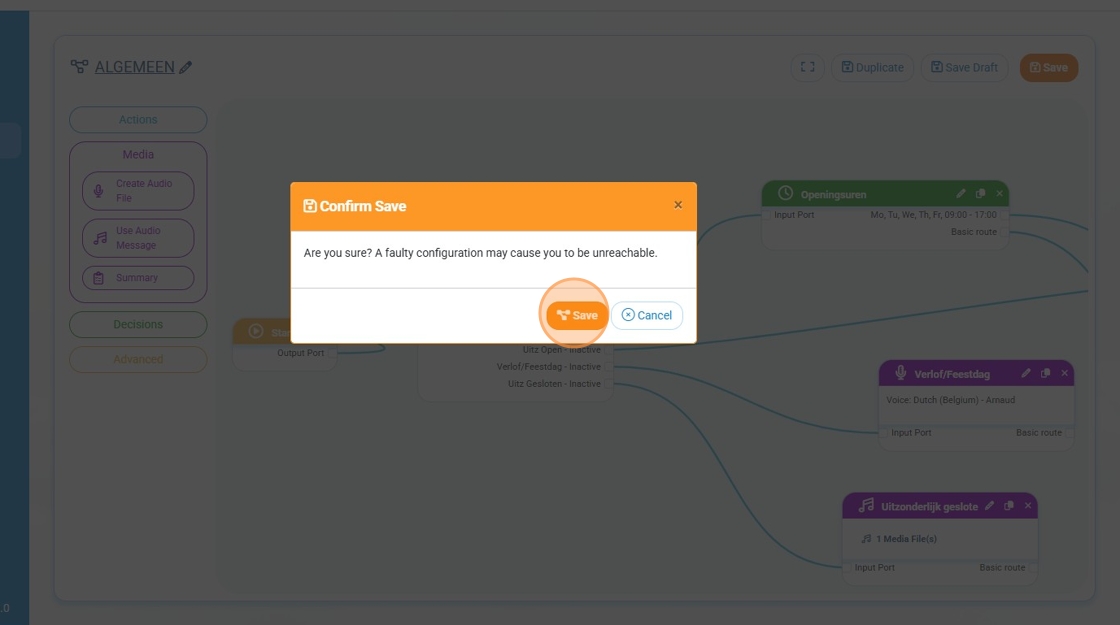
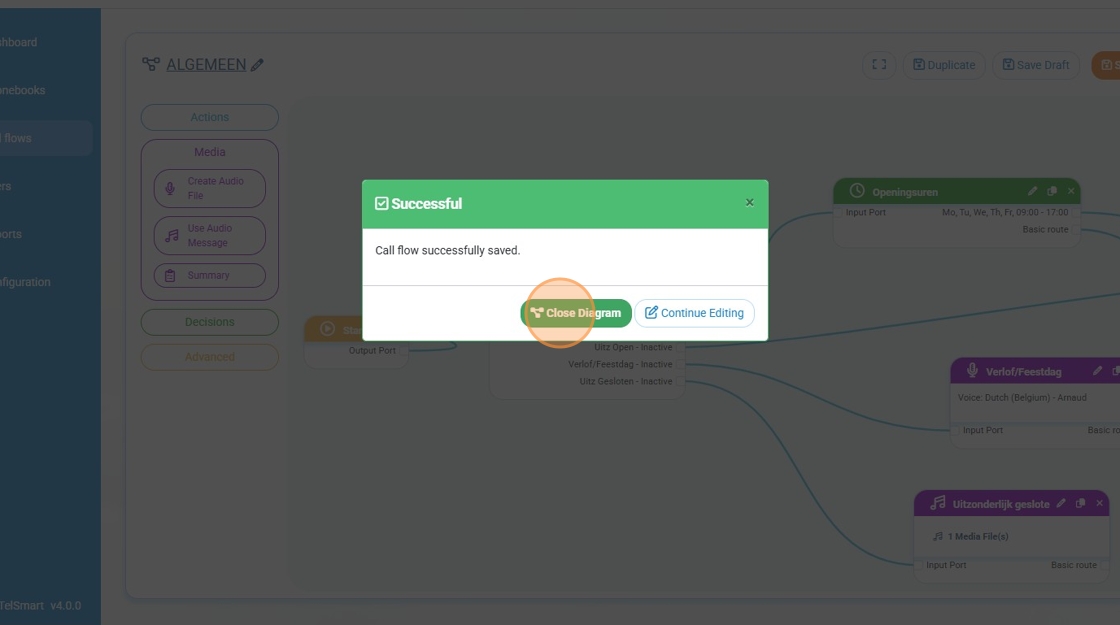
Step 12: Click "Save" and then "Close Diagram"